

Stylish Tote Bags with Machine Embroidery 👜✨

By diver361
- 932 views
- View diver361's images
Machine Embroidery on Shopping Bags 👜✨
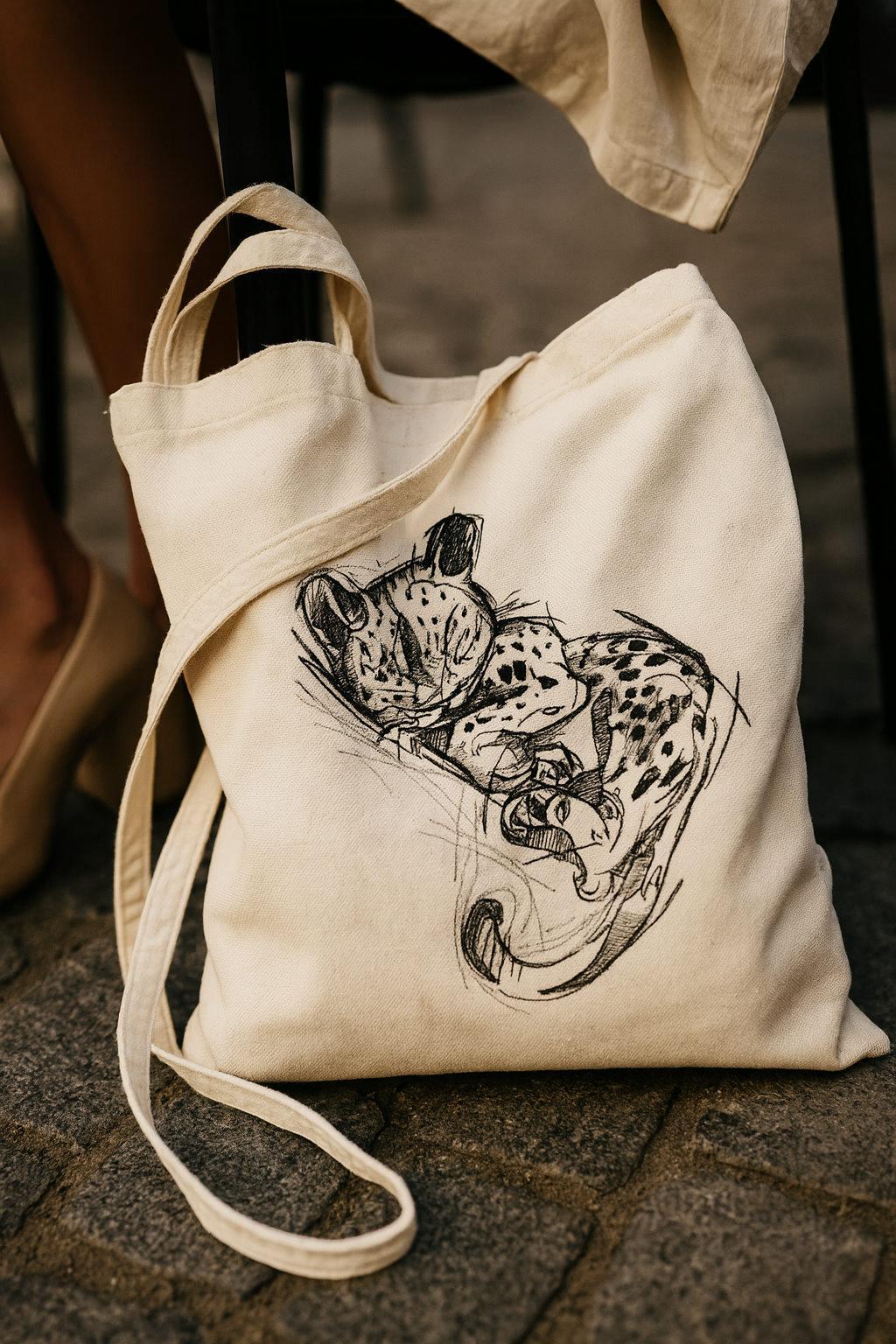
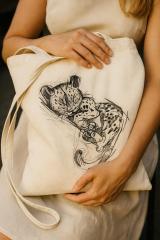
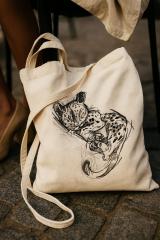
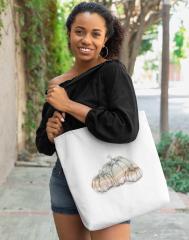
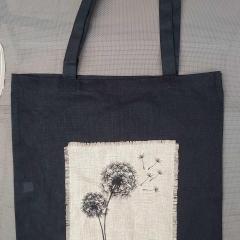
Embroidered shopping bags are not only eco-friendly but also stylish and personal. Adding machine embroidery to a tote bag transforms a simple fabric accessory into a unique fashion statement. One beautiful example is the Sleeping Jaguar Cub embroidery design, which combines elegance with practicality.
In this blog, we’ll explore how to embroider on shopping bags, the best stabilizers to use, and why choosing sketch-style designs can save you time, money, and thread.
Choosing the Right Stabilizer 🧵
Shopping bags are usually made from cotton canvas or linen blends, which can be dense but not very stretchy. To prevent puckering and ensure smooth stitching, stabilizers are essential.
👉 Professional Tip:
For medium-weight canvas (around 220–280 g/m²), use a tear-away stabilizer of 50–60 g/m². If the fabric is thinner (below 200 g/m²), a cut-away stabilizer of 80 g/m² is safer to prevent distortion.
👉 Comparison Table:
Fabric weight | Stabilizer type | Recommended weight | Notes |
|---|---|---|---|
Light canvas (<200 g/m²) | Cut-away | 80 g/m² | Strong support, avoids stretching |
Medium canvas (220–280 g/m²) | Tear-away | 50–60 g/m² | Easy to remove, clean finish |
Heavy canvas (>300 g/m²) | No stabilizer / water-soluble | Optional | Often stable enough, but test first |
💡 Always hoop the fabric with stabilizer firmly to avoid shifting during embroidery.
The Advantage of Sketch-Style Designs ✍️
Not all embroidery designs are created equal. For shopping bags, sketch-style patterns (like the Sleeping Jaguar Cub) offer several advantages over dense, filled designs:
✅ Less Thread Consumption: Sketch designs can use up to 40–60% less thread, saving both time and money.
✅ Lighter on Fabric: Without heavy fills, the stitches don’t make the canvas stiff. The bag remains soft and flexible.
✅ Less Stabilizer Needed: Because the design is lighter, you can often use a thinner stabilizer, or even a single layer, instead of multiple layers.
✅ Artistic Look: The hand-drawn effect gives a natural, stylish appearance—perfect for casual tote bags.
✨ Example: The Sleeping Jaguar Cub embroidery design combines light sketch lines with carefully placed details, creating a dynamic look without overloading the fabric.
Professional Tips for Perfect Results 🪡
👉 Use a Sharp Needle: A size 75/11 embroidery needle works best on canvas for clean penetration.
👉 Adjust Tension: Reduce upper thread tension slightly (by 0.2–0.3 points) to avoid thread breaks on thicker fabric.
👉 Stitch Speed: Keep machine speed around 600–700 SPM. Slower speeds reduce needle deflection on dense fabric.
👉 Placement Matters: Center designs on the bag front, but test smaller motifs in corners for unique accents.
Conclusion 🌿
Machine embroidery on shopping bags is both practical and artistic. By using the right stabilizers and exploring sketch-style designs, you can create lightweight, beautiful, and eco-friendly accessories.
The Sleeping Jaguar Cub embroidery design shows how minimal stitches can produce maximum style. Try it on your next tote project—you’ll be amazed at how professional and creative your bag looks!
Recommended Comments
Join the conversation
You can post now and register later. If you have an account, sign in now to post with your account.